
Rotate, Append, Insert, Concatenate PDF Documents
In the second part, we took a first look at PDF Annotator's Page Manager, which provides both page- and document-oriented functions. After examining some of the page functions in Parts 1 and 2, we would now like to draw your attention to some of the document functions.
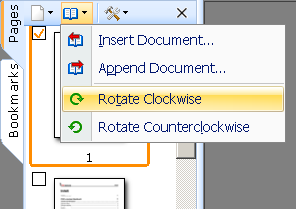 Just as you can rotate a page (as described in the last issue), you can also use a single click to simultaneously
turn all the pages of a document 90 degrees at a time. This function can be accessed using the Document icon
in Page Manager.
Just as you can rotate a page (as described in the last issue), you can also use a single click to simultaneously
turn all the pages of a document 90 degrees at a time. This function can be accessed using the Document icon
in Page Manager.
There you will also find functions to insert or append entire documents. As is the case when you insert
pages, where everything depends on which page is currently selected, you can, for example, select the first page of
a document and click Insert Document, and the second document will be inserted in front of the first page.
Likewise, if you select the last page and click Append Document, the second document will be added after the
end of the first. Of course, you can also insert one document in the middle of another!
Many of our customers use this function to apply standard templates to documents. You can create a document
of a single page perhaps containing your logo, your letterhead, an entire form, or just some ruled lines. Open the
template and start a new document-which you will save under a new name. If you need additional pages with the same
template, just insert the template file again at the end.
You can use PDF Annotator to chain together any number of documents-and afterwards move individual pages
around. Once you save your changes, everything will be in a single document.
 One more practical tip:
There are two ways of customizing the size of the Page Manager.
Use the mouse to drag the divider between the sidebar and the document window to increase Page Manager's
width.
By doing this, you also change the size of the thumbnails in Page Manager, so that you can either see more pages at
the same time, or else make the pictures larger and easier to recognize.
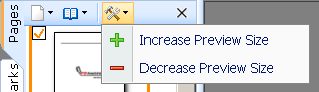
Just click the button at the top of Page Manager and choose either Increase Preview Size or Decrease
Preview Size.
One more practical tip:
There are two ways of customizing the size of the Page Manager.
Use the mouse to drag the divider between the sidebar and the document window to increase Page Manager's
width.
By doing this, you also change the size of the thumbnails in Page Manager, so that you can either see more pages at
the same time, or else make the pictures larger and easier to recognize.
Just click the button at the top of Page Manager and choose either Increase Preview Size or Decrease
Preview Size.
And so we come to the end of our three-part series on page management. In the next issue, we will explore a
completely different function. Hope to see you there soon!